Your alerts.
Your accounts.
Your execution.
The program that takes your TradingView webhooks and places the orders on your prop-firm futures accounts — from your own Windows PC, not the cloud.
Guard rails built in.
- It blocks a trade that would hedge two accounts on the same broker connection.
- It never adds size on its own.
- One button sends a flatten to every account it manages.
$50/month · One machine · No per-account fees
From your chart to your accounts.
Your alert passes through the hosted webhook to Shogun on your PC. Shogun places the order using your own broker login.
- TradingViewYour alert fires
- Hosted webhookOurs · no tunnel
- ShogunYour own PC
- Your brokerYour own login
The hosted webhook is the service we run. It stores your webhook credentials and relays your alerts. Broker sign-in, sizing, guards and order execution happen in Shogun on your machine, using your broker login.
A clear view of your setup.
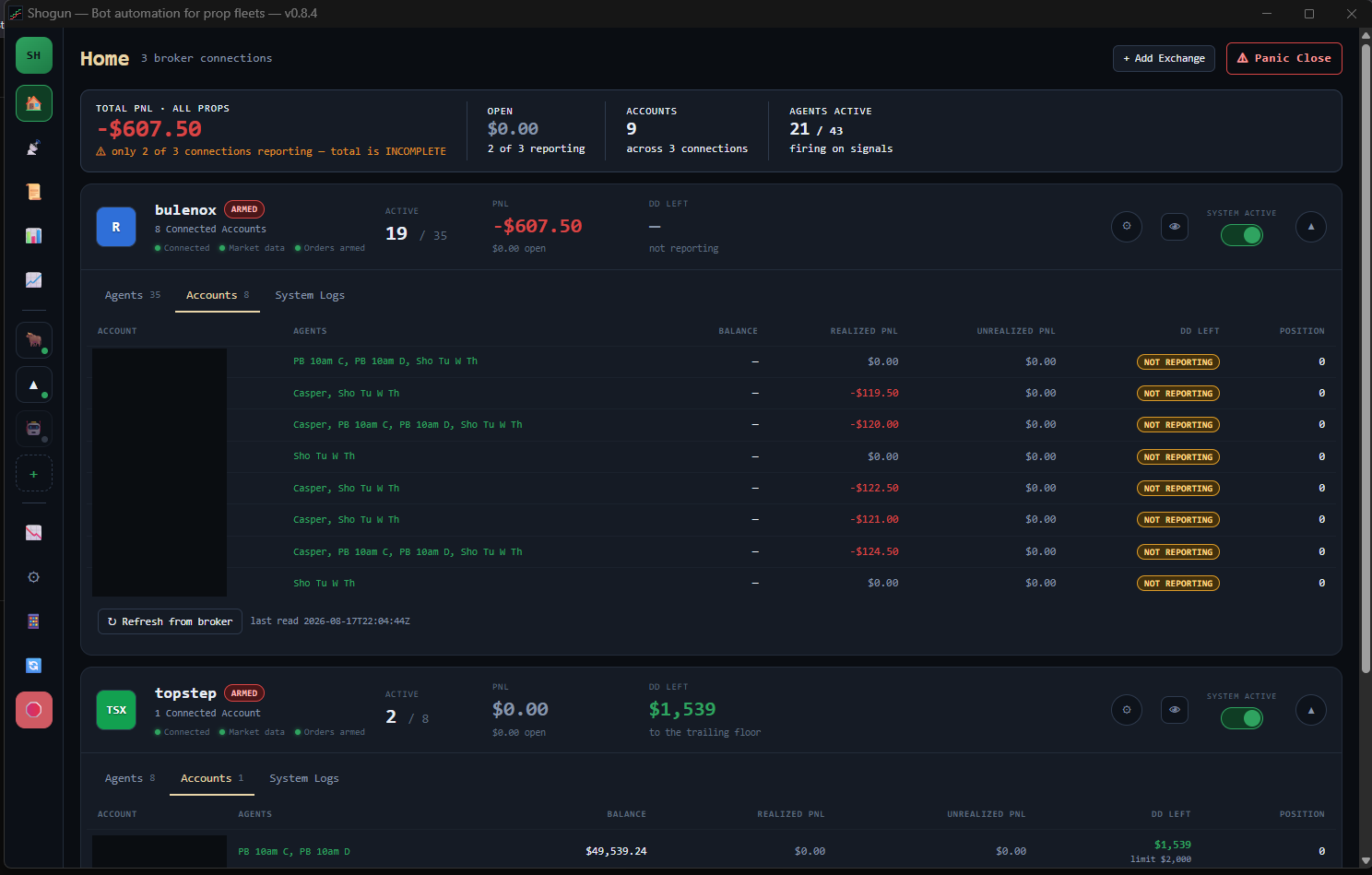
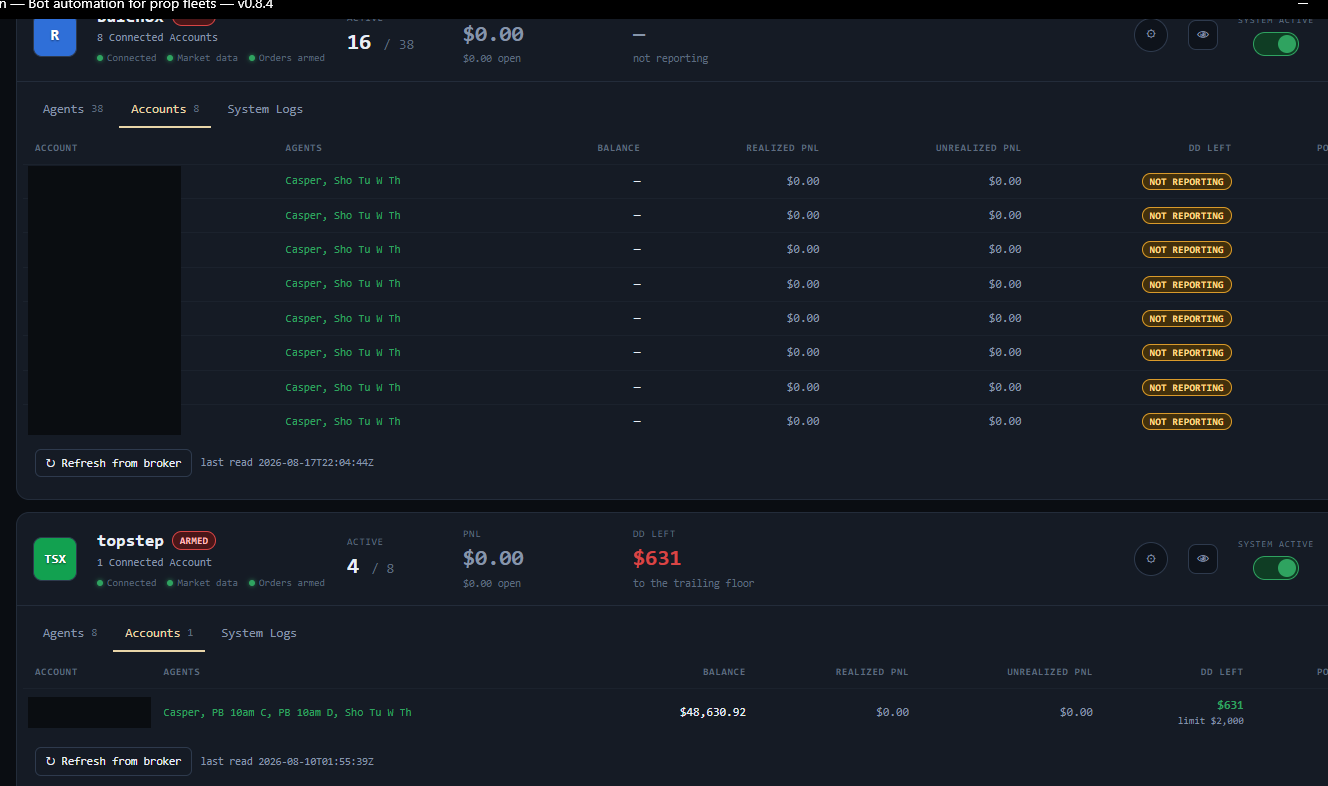
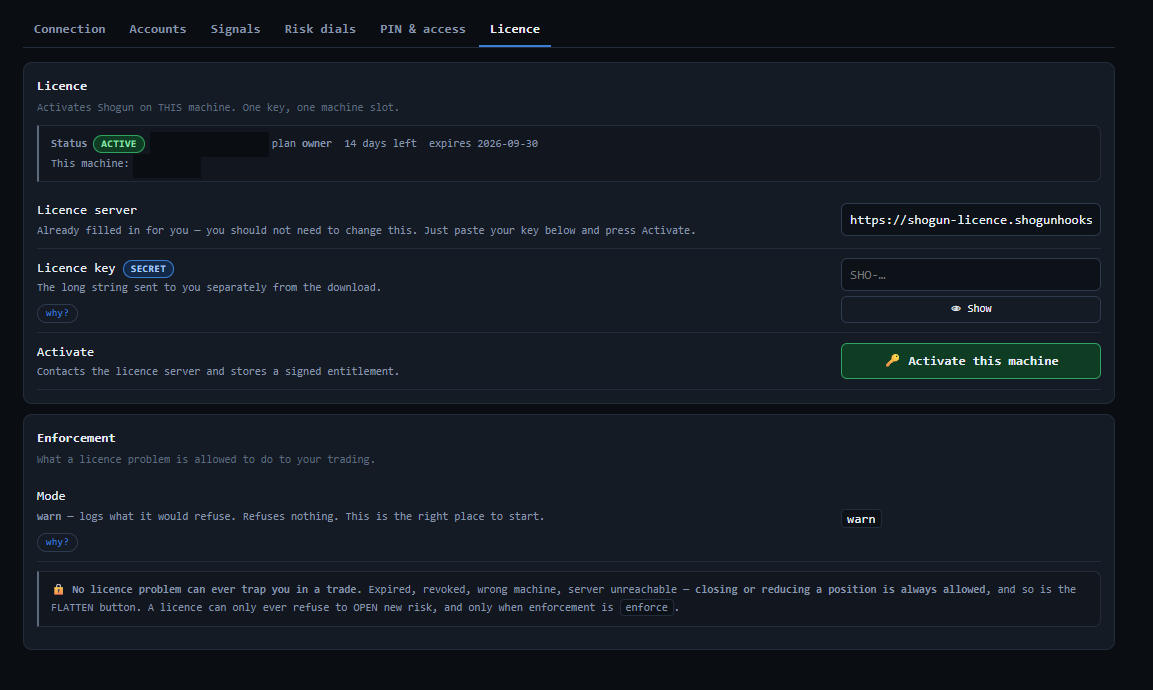
Account routing and licence controls in the desktop app. Shogun runs your own alerts; nothing shown here is an included strategy.
Controls for when it matters.
An execution layer's job is not only to place orders. It is to refuse to place the wrong ones.
Hedge guard
The default hedge guard refuses opposing signals when another account on the same configured broker connection is recorded in the other direction. A connection locked after a detected hedge requires review before signals can resume. Check the broker's positions; this guard does not guarantee that every account is unhedged.
Over-fill watchdog
On an account one strategy trades, Shogun keeps checking the position against the size it sent. If the broker ends up holding more — a duplicate fill, an extra order from somewhere else — it trims the extra back off. The trim is bounded by the observed position, which can change before execution.
Panic close
One control sends a flatten to every account Shogun manages without requiring a valid licence. It reports a result for each account; check positions in the broker's platform before you treat any account as flat. Closing does not also pause.
Closing stays available
The local licence check can refuse new risk. Panic Close sits outside that check and remains available when your licence has expired. Your PC, broker connection and broker platform still have to work.
By default you sign in on your broker's own login page, in a window Shogun opens. If you choose to let Shogun sign in for you, it stores the login encrypted with Windows DPAPI (falling back to the system keyring only where DPAPI is not available), and it refuses to store the login at all if neither is available. The control surface listens only on your own machine, and that is forced by the build rather than set in a config file.
Guards do not guarantee compliance with your firm’s rules. A lapsed subscription stops new entries and partial scale-outs on the hosted relay; flat-marked exits remain eligible for delivery. Delivery and closure are not guaranteed. Read the full licence and safety caveats →
Connect once. Check every session.
The order matters: each step needs the one before it. Step three is where people get stuck, so it is the one we made hardest to get wrong. The full setup guide walks all four.
Install and activate
Save Shogun.exe to a plain local path such as C:\Shogun\
and run it. Paste the licence key from your purchase — it is shown on screen
right after you pay, so save it then. That activates the machine and mints your
webhook address.
Run it from a real local folder, not from OneDrive, Dropbox or Google Drive — a sync client can lock the file while it is running.
Connect your broker
Add the connection and switch it on — that opens your broker's own login window for you to sign into. Shogun then reads the account list back from the broker, and you tick the ones it is allowed to trade.
Rithmic (R|Trader Pro web, which is how Bulenox and Apex clear) and TopstepX. Accounts are read from the broker, never invented.
Point your alert at your webhook
Copy the webhook URL from Setup → Licence into the TradingView alert's
Webhook URL field, and put your alert secret inside the alert message. The
signal name has to match a signal you set up in Shogun.
{
  "name": "YOUR SIGNAL NAME",
  "secret": "your-alert-secret",
  "trade_type": "{{strategy.order.action}}",
  "quantity": "{{strategy.order.contracts}}",
  "sentiment": "{{strategy.market_position}}",
  "timestamp": "{{timenow}}"
}
There is no tunnel step. The licence server hosts the webhook for you,
so the address is already a public https:// endpoint.
Fire a test and watch it arrive
Trigger one alert and confirm its delivery on Shogun's health screen, with no unroutable signals. Follow the setup guide's pass check, then check the broker's fill separately before treating setup as complete.
Start on a practice or evaluation account. Shogun places real orders with real sizing from the moment it is live.
Step three is where people get stuck. The setup guide walks it with the exact alert body to paste, so you are not guessing at JSON on a live account.
Read the setup guideYour setup.
Ready for execution.
Shogun is in private beta. Bring your own TradingView strategy, a supported broker account and a Windows PC that can stay running during your session.
Start on a practice or evaluation account. Read the setup guide and risk disclosure before placing live orders.
One licence. One machine. Your own alerts.
- Hosted webhook endpoint included
- Your own signals, accounts and sizing
- No trading strategies or signals included
Billed monthly. Cancel any time from your account page. Any tax is shown at checkout before you pay.
Extra machines are arranged by contacting us; there is no self-serve button.
What can go wrong, and where the responsibility sits.
We would rather say this plainly before you buy than have you find it out on a funded account.
This is software, and software fails
Shogun can miss an alert, act on one late, place an order you did not expect, or stop running without telling you. It depends on TradingView, on your internet, on your PC staying awake, on your broker's platform, and on our licence server — and any one of those can fail without warning, including while you are in a position.
A stop is not a guaranteed exit price
Gaps, fast markets, thin liquidity, execution latency and slippage can all make a loss larger than the number you set. The price your strategy expected and the price you get will differ.
Automated orders can breach a prop account in a single trade
Funded and evaluation accounts carry rules that an automated system can violate faster than you can react — a daily loss limit, a trailing drawdown, a maximum position size, or a flat-before-the-close deadline. A breach can end the account regardless of whether you were up or down on the day.
Shogun's guards are there to assist with that. They do not guarantee compliance, they depend on settings you control and on the platform actually running, and meeting your firm's rules remains yours. Read your firm's rulebook; it is the one that decides.
Where the responsibility sits
You are responsible for every order placed in your account. We do not accept liability for trading losses, for missed or duplicated trades, or for an account being suspended, breached, failed or closed — whether that follows from a defect or error in our software, from a failure of a service it depends on, from a configuration you chose, or from the market itself.
Nobody here sees, directs or manages your account, and no order is placed on your behalf without your own setup. We provide tools; the trading decisions and the consequences are yours.
So start on a practice account
Run it on an evaluation or simulated account until you have watched it behave across a full session and you trust what it does. Only trade with money you can afford to lose entirely — and with futures, you can lose more than you put in.
Before you buy.
Do I get trading strategies with this?
No. Shogun executes the alerts you already have. You bring your own TradingView strategy and your own alerts. Shogun includes no strategies or signals.
Do I need to set up a tunnel or open a port?
No. The licence server hosts your webhook, so what you paste into TradingView is already a public address. No cloudflared, no Cloudflare account, no router settings, no firewall rules.
Where do broker access and order execution happen?
Broker sign-in and order execution happen on your PC. We do not sign into your broker account. Our hosted relay stores your webhook credentials and handles the alert messages that Shogun acts on. Sizing decisions, guards and Panic Close stay on your machine, and the public build forces its control surface to listen only on that machine.
You sign in on your broker's own page by default. If you opt to have Shogun sign in for you, that login is stored with Windows DPAPI, with a keyring fallback. Error reports and diagnostics can send scrubbed troubleshooting data to us; the privacy notice explains what is included and how to turn automatic reports off.
Windows says the app is unrecognised. Is that a problem?
That warning is expected on a build that is not yet code-signed. Choose More info then Run anyway. You can verify the download against the SHA-256 hash on the download page if you want to confirm the file is intact — the docs show how.
Which brokers does it work with?
Two platforms today: Rithmic, via the R|Trader Pro web platform — which is how Bulenox and Apex accounts clear — and TopstepX for Topstep.
Tradovate, NinjaTrader and The Futures Desk are listed inside the app but are not wired, and Shogun will refuse to add them rather than show you a connection that can never connect. If your firm clears somewhere else, ask before you buy and we will tell you straight.
What happens if my PC restarts or goes to sleep?
Shogun must be running to act on alerts. Reopen Shogun after a PC reboot. The hosted relay queues alerts while it is closed. Non-flat alerts older than the configured entry-age limit are dropped; the default is 180 seconds. Full exits bypass freshness checks, but cleanup can remove queued alerts. Do not rely on replay after downtime. Check Shogun before every session.
The app states its live status in one sentence on its panel page (the phone icon in the app's left rail), so a glance at your PC before each session tells you the difference between a dead app and a quiet market. That is the single most common way people lose trades with it, so we would rather you knew now.
Still not sure it is the right thing? Ask before you buy. We would rather lose the sale than have you set this up against an account it cannot trade.
Get Shogun